> ## Documentation Index
> Fetch the complete documentation index at: https://docs.magmadeploy.com/llms.txt
> Use this file to discover all available pages before exploring further.
# Gmail Integration Agent
> Create an AI agent that can send and manage emails through Gmail
Estimated time to complete: 10 minutes
 ## Overview
Welcome to Magma! 🌋
This template will help you create an agent that can send and manage emails through your Gmail account.
It involves:
* Creating a Google Cloud Project
* Enabling the Gmail API
* Creating OAuth credentials
* Using the credentials to authenticate your agent with Gmail
## Getting Started
If you already have the CLI installed, you can skip this step.
```bash theme={null}
npm install -g @pompeii-labs/cli
```
```bash theme={null}
magma login
```
```bash theme={null}
magma init -t gmail
cd
```
After the agent is created, you should notice `Agent ID: XXXXX` in the output. Copy this agent id, we will need it in the next section!
## Google Cloud Setup
In order to create an agent that can interact with Gmail, we need to create a Google Cloud Project, enable the Gmail API, and create OAuth credentials.
1. Go to [Google Cloud Console](https://console.cloud.google.com)
2. Create a new project or select an existing one
## Overview
Welcome to Magma! 🌋
This template will help you create an agent that can send and manage emails through your Gmail account.
It involves:
* Creating a Google Cloud Project
* Enabling the Gmail API
* Creating OAuth credentials
* Using the credentials to authenticate your agent with Gmail
## Getting Started
If you already have the CLI installed, you can skip this step.
```bash theme={null}
npm install -g @pompeii-labs/cli
```
```bash theme={null}
magma login
```
```bash theme={null}
magma init -t gmail
cd
```
After the agent is created, you should notice `Agent ID: XXXXX` in the output. Copy this agent id, we will need it in the next section!
## Google Cloud Setup
In order to create an agent that can interact with Gmail, we need to create a Google Cloud Project, enable the Gmail API, and create OAuth credentials.
1. Go to [Google Cloud Console](https://console.cloud.google.com)
2. Create a new project or select an existing one
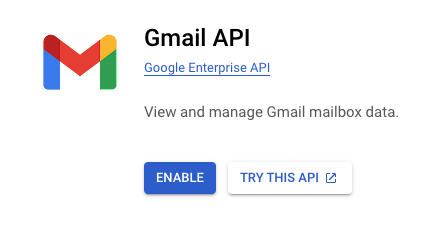
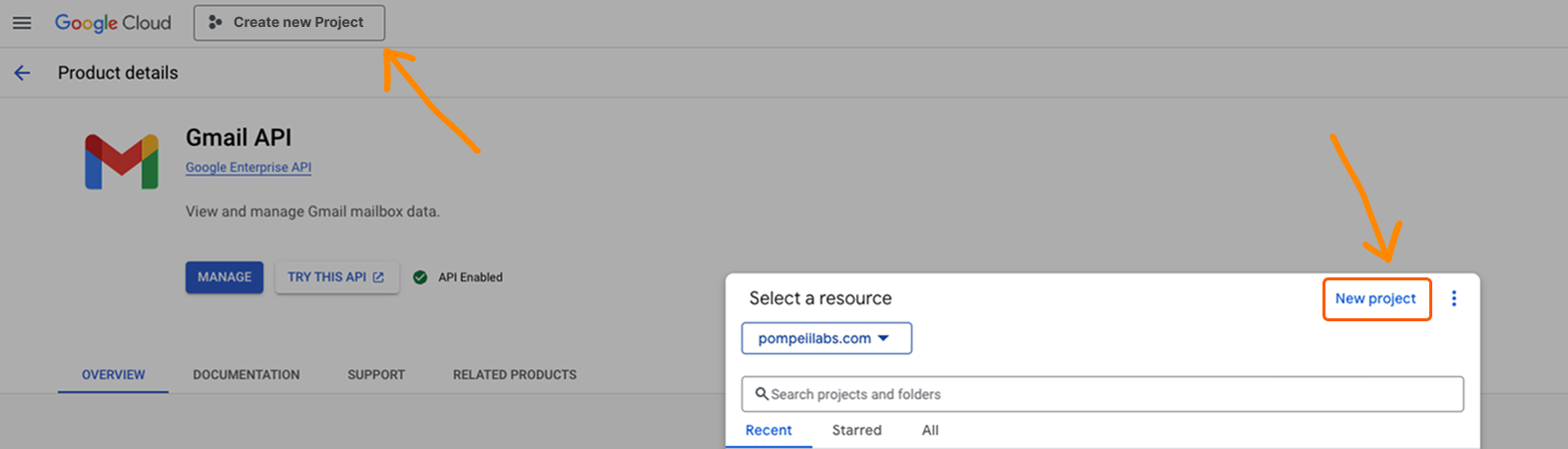 In the search bar, enter "Gmail API" and click on the "Gmail API" card.
 Click on the "Enable" button.
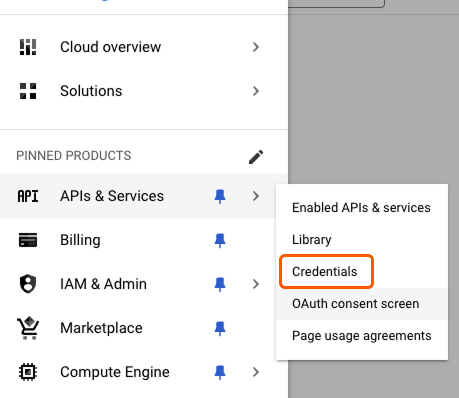
 1. Go to "APIs & Services" > "OAuth consent screen"
2. For "User type", select "Internal" if you want people in your organization to use the agent. Otherwise, select "External" (you will have to add your email to test users later in order to use the agent)
3. Fill in the required app information (this can be changed later, don't worry about it for now)
1. Go to "APIs & Services" > "OAuth consent screen"
2. For "User type", select "Internal" if you want people in your organization to use the agent. Otherwise, select "External" (you will have to add your email to test users later in order to use the agent)
3. Fill in the required app information (this can be changed later, don't worry about it for now)
 1. On the Scopes screen, click "Add or Remove Scopes" in the middle of the screen.
2. Under "Manually Add Scopes", add the following scope: `https://mail.google.com/`
3. Click "Add to Table"
4. Click "Update"
5. At the bottom of the screen, click "Save and Continue"
Make sure to save and continue, or your scopes will not be saved!
1. Go to "APIs & Services" > "Credentials"
2. At the top of the screen, click "Create Credentials" > "OAuth Client ID"
3. Select "Web application" for your application type
4. For "Authorized redirect URIs", add the following two values
```
http://localhost:3000/v1/agents/AGENT_ID/hooks/google-oauth # For local testing
```
```
https://api.magmadeploy.com/v1/agents/AGENT_ID/hooks/google-oauth # For production
```
Remember when I said you'd need that agent id? Replace `AGENT_ID` in the redirect URIs with your actual agent id!
Copy the `Client ID` and `Client Secret` values. We will need them in the next step.
1. On the Scopes screen, click "Add or Remove Scopes" in the middle of the screen.
2. Under "Manually Add Scopes", add the following scope: `https://mail.google.com/`
3. Click "Add to Table"
4. Click "Update"
5. At the bottom of the screen, click "Save and Continue"
Make sure to save and continue, or your scopes will not be saved!
1. Go to "APIs & Services" > "Credentials"
2. At the top of the screen, click "Create Credentials" > "OAuth Client ID"
3. Select "Web application" for your application type
4. For "Authorized redirect URIs", add the following two values
```
http://localhost:3000/v1/agents/AGENT_ID/hooks/google-oauth # For local testing
```
```
https://api.magmadeploy.com/v1/agents/AGENT_ID/hooks/google-oauth # For production
```
Remember when I said you'd need that agent id? Replace `AGENT_ID` in the redirect URIs with your actual agent id!
Copy the `Client ID` and `Client Secret` values. We will need them in the next step.
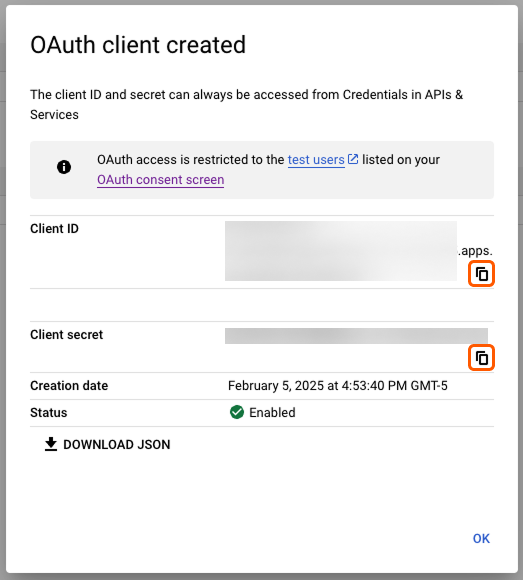 Add these variables to your `.env` file:
```bash theme={null}
GOOGLE_CLIENT_ID=your_client_id
GOOGLE_CLIENT_SECRET=your_client_secret
GOOGLE_REDIRECT_URI=http://localhost:3000/v1/agents/AGENT_ID/hooks/google-oauth
```
## Testing and Deployment
Run the agent locally to test the OAuth flow. When you ask your agent to authenticate you with Google, it should print out a google oauth url.
```bash theme={null}
magma run
```
After you authenticate, you should see a `credentials.json` file in the root of your project. This means it's working!
Once you have verified your agent is working locally, you can deploy it to magma and start interacting with your Gmail!
Before you deploy, make sure to update the `GOOGLE_REDIRECT_URI` in your `.env` file to the production redirect uri ([https://api.magmadeploy.com](https://api.magmadeploy.com) instead of localhost).
```bash theme={null}
magma deploy
```
## Troubleshooting
If authentication fails:
* Verify credentials in `.env` file
* Ensure redirect URI matches exactly in Google Cloud Console
* Confirm Gmail API is enabled
If emails aren't sending:
* Verify OAuth tokens are valid
* Check if `credentials.json` exists
* Ensure Gmail API scope is authorized
* Invalid redirect URI: Double-check exact matches
* Missing scopes: Verify `https://mail.google.com/` is included
* Expired tokens: May need re-authentication
**Security Note**: Never commit `credentials.json` to version control. Add it to your `.gitignore` file!
Contact our support team for assistance
Connect with other Magma developers
Add these variables to your `.env` file:
```bash theme={null}
GOOGLE_CLIENT_ID=your_client_id
GOOGLE_CLIENT_SECRET=your_client_secret
GOOGLE_REDIRECT_URI=http://localhost:3000/v1/agents/AGENT_ID/hooks/google-oauth
```
## Testing and Deployment
Run the agent locally to test the OAuth flow. When you ask your agent to authenticate you with Google, it should print out a google oauth url.
```bash theme={null}
magma run
```
After you authenticate, you should see a `credentials.json` file in the root of your project. This means it's working!
Once you have verified your agent is working locally, you can deploy it to magma and start interacting with your Gmail!
Before you deploy, make sure to update the `GOOGLE_REDIRECT_URI` in your `.env` file to the production redirect uri ([https://api.magmadeploy.com](https://api.magmadeploy.com) instead of localhost).
```bash theme={null}
magma deploy
```
## Troubleshooting
If authentication fails:
* Verify credentials in `.env` file
* Ensure redirect URI matches exactly in Google Cloud Console
* Confirm Gmail API is enabled
If emails aren't sending:
* Verify OAuth tokens are valid
* Check if `credentials.json` exists
* Ensure Gmail API scope is authorized
* Invalid redirect URI: Double-check exact matches
* Missing scopes: Verify `https://mail.google.com/` is included
* Expired tokens: May need re-authentication
**Security Note**: Never commit `credentials.json` to version control. Add it to your `.gitignore` file!
Contact our support team for assistance
Connect with other Magma developers