> ## Documentation Index
> Fetch the complete documentation index at: https://docs.magmadeploy.com/llms.txt
> Use this file to discover all available pages before exploring further.
# Supabase Database Agent
> Create an AI agent that can interact with your Supabase database
Estimated time to complete: 5 minutes
 ## Overview
Welcome to Magma! 🌋
This template will help you create:
* An AI agent hosted on Magma
* A secure connection to your Supabase database
* Natural language interactions with your database to run complex queries
**Prerequisites**:
* A Supabase project with database access
* Your database's master password
* If you've lost the password, reset it in the Supabase dashboard before continuing
## Getting Started
If you have already installed the CLI, you can skip this step
```bash theme={null}
npm install -g @pompeii-labs/cli
```
```bash theme={null}
magma login
```
Use the `magma init` command to create a new agent using the `supabase-db` template
```bash theme={null}
magma init --template supabase-db [agent-name]
cd [agent-name]
```
## Supabase Configuration
### Getting Your Connection String
1. Go to your Supabase project dashboard
2. Click the "Connect" button at the top of the screen
## Overview
Welcome to Magma! 🌋
This template will help you create:
* An AI agent hosted on Magma
* A secure connection to your Supabase database
* Natural language interactions with your database to run complex queries
**Prerequisites**:
* A Supabase project with database access
* Your database's master password
* If you've lost the password, reset it in the Supabase dashboard before continuing
## Getting Started
If you have already installed the CLI, you can skip this step
```bash theme={null}
npm install -g @pompeii-labs/cli
```
```bash theme={null}
magma login
```
Use the `magma init` command to create a new agent using the `supabase-db` template
```bash theme={null}
magma init --template supabase-db [agent-name]
cd [agent-name]
```
## Supabase Configuration
### Getting Your Connection String
1. Go to your Supabase project dashboard
2. Click the "Connect" button at the top of the screen
 Locate the "Transaction Pooler" section in the connection panel
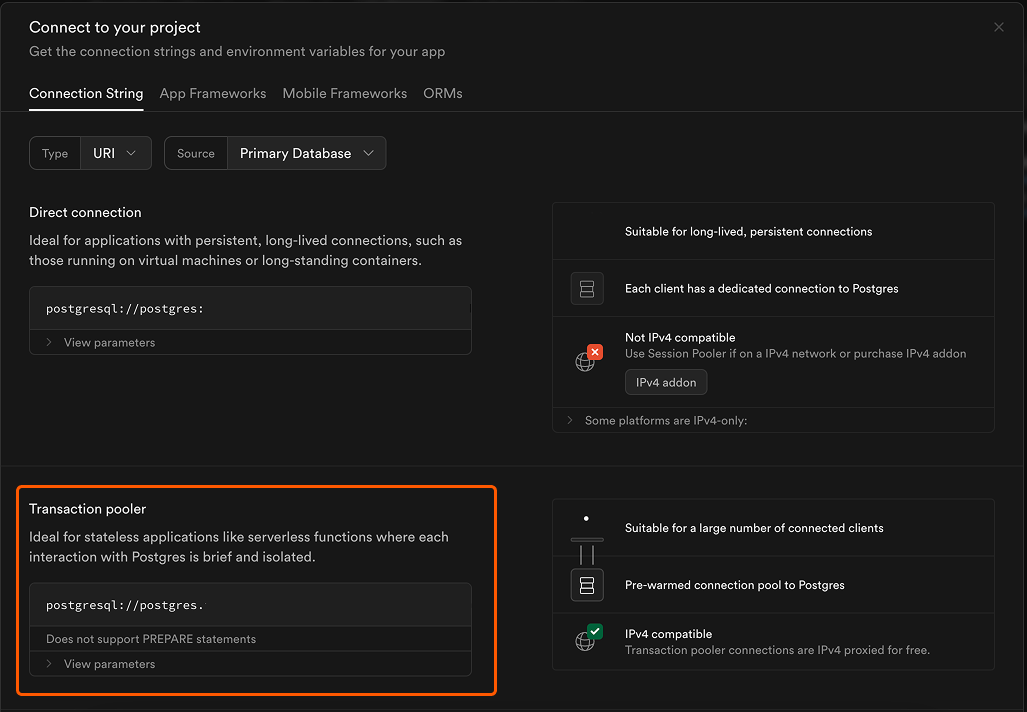 Make sure to use the Transaction Pooler connection string, not the direct connection string!
Copy the entire postgres connection string (starts with `postgresql://`)
Add the connection string to your `.env` file:
```bash theme={null}
POSTGRES_URL=postgresql://postgres.your-project-id:[YOUR-PASSWORD]...
```
Replace `[YOUR-PASSWORD]` with your database's master password in the POSTGRES\_URL environment variable.
## Testing and Deployment
Test your agent locally first:
```bash theme={null}
magma run
```
When everything works locally, deploy to Magma:
```bash theme={null}
magma deploy
```
Now, your agent is deployed on [Magma](https://magmadeploy.com) and ready to use!!
## Troubleshooting
If you're experiencing DNS or connection errors:
* Verify you're using the **Transaction Pooler** connection string
* Check that your connection string is properly formatted
* Ensure your database password is correct
If you encounter Anthropic SDK related deployment issues:
1. Open `tsconfig.json`
2. Add `"skipLibCheck": true` to the `compilerOptions` section
3. Run `magma deploy` again
Contact our support team for assistance
Connect with other Magma developers
Make sure to use the Transaction Pooler connection string, not the direct connection string!
Copy the entire postgres connection string (starts with `postgresql://`)
Add the connection string to your `.env` file:
```bash theme={null}
POSTGRES_URL=postgresql://postgres.your-project-id:[YOUR-PASSWORD]...
```
Replace `[YOUR-PASSWORD]` with your database's master password in the POSTGRES\_URL environment variable.
## Testing and Deployment
Test your agent locally first:
```bash theme={null}
magma run
```
When everything works locally, deploy to Magma:
```bash theme={null}
magma deploy
```
Now, your agent is deployed on [Magma](https://magmadeploy.com) and ready to use!!
## Troubleshooting
If you're experiencing DNS or connection errors:
* Verify you're using the **Transaction Pooler** connection string
* Check that your connection string is properly formatted
* Ensure your database password is correct
If you encounter Anthropic SDK related deployment issues:
1. Open `tsconfig.json`
2. Add `"skipLibCheck": true` to the `compilerOptions` section
3. Run `magma deploy` again
Contact our support team for assistance
Connect with other Magma developers